
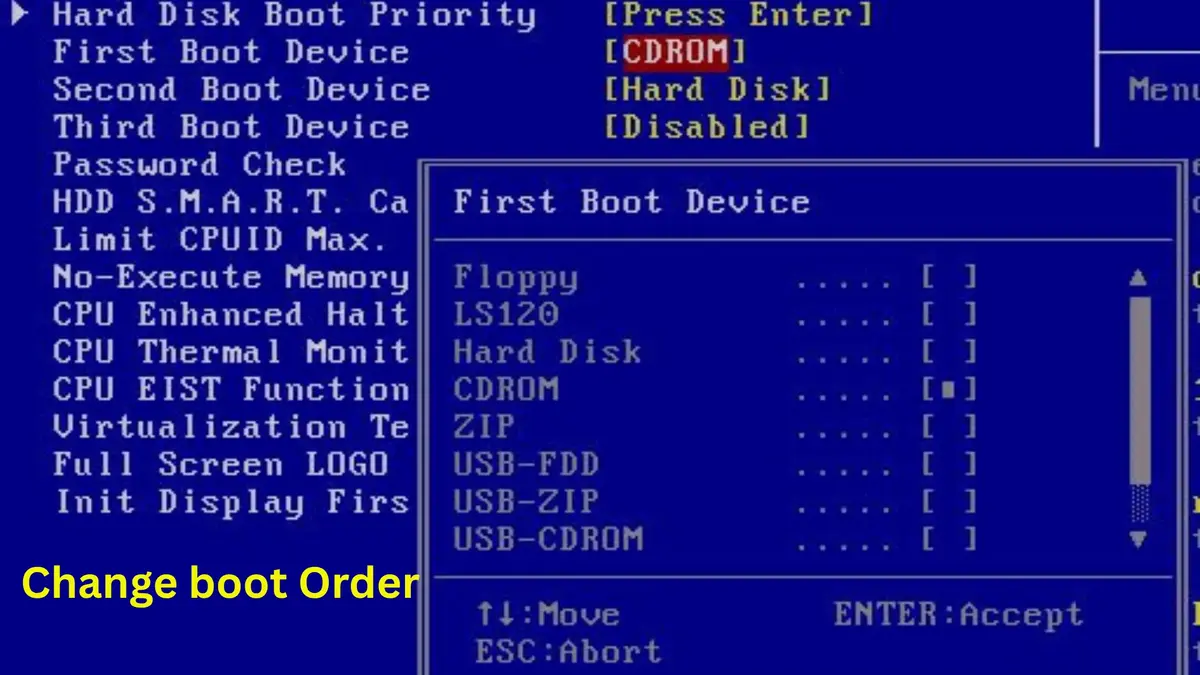
What Is BIOS Boot Order? How It Works and Why It Matters
When you turn on a computer, it needs to know where to look for an operating system before Windows or another operating system can start. It might check an internal SSD, a USB flash drive, a hard drive, or another bootable device. The order in which the computer checks these options is known as the BIOS boot order.
For example, if your computer has Windows installed on an SSD and a USB flash drive connected, its firmware uses the configured boot priority to decide which option to try first. If Windows Boot Manager is at the top of the list, the computer will normally attempt to start Windows from the internal drive before trying other eligible options.
Understanding this setting can help when installing Windows, starting a computer from a USB drive, replacing storage devices, or troubleshooting startup problems. Although the term BIOS is still widely used, many modern computers actually use UEFI firmware, which manages boot options differently from traditional BIOS.
What Is BIOS Boot Order?
BIOS boot order is the priority sequence a computer’s firmware uses to decide which bootable device or entry to attempt when the computer starts.
It determines where the computer looks for instructions to begin loading an operating system. Depending on the computer’s hardware and firmware configuration, the available options might include:
- Windows Boot Manager
- An internal solid-state drive (SSD)
- A hard disk drive (HDD)
- A bootable USB flash drive
- A CD or DVD drive
- A network adapter
The first eligible option in the configured sequence normally gets the first opportunity to start the computer. If it cannot boot successfully, the firmware may attempt another option, depending on its implementation and settings.
Consider a computer with Windows installed on an SSD. Its firmware might display Windows Boot Manager as the first boot option, followed by USB storage and network boot. With this configuration, the computer normally tries to start Windows before checking those alternative options.
In simple terms, BIOS boot order tells your computer which boot option to try first, second, third, and so on.
It does not determine which operating system is installed on a drive, and changing the sequence does not move, delete, or reinstall your files.
How Does BIOS Boot Order Work?
The boot process begins when you press the computer’s power button. Before Windows appears on the screen, the motherboard’s firmware performs several tasks to prepare the system and locate something it can boot.
The process generally follows these stages.
1. The Computer Powers On
When you press the power button, the motherboard receives power and begins executing its firmware instructions.
The firmware is stored in non-volatile memory on the motherboard, so it remains available even when the computer is switched off.
2. Hardware Initialization Begins
The firmware initializes essential hardware components, including the processor, memory, and other devices needed during startup.
It also performs startup checks, commonly associated with the Power-On Self-Test (POST).
During this stage, the firmware prepares the system to continue the boot process.
3. The Firmware Checks Boot Options
Once the necessary initialization is complete, the firmware consults its boot configuration.
It uses the configured boot priority to determine which available boot option to attempt first.
For example, a computer might have this configuration:
| Priority | Boot option |
|---|---|
| First | Windows Boot Manager |
| Second | USB flash drive |
| Third | Internal HDD |
| Fourth | Network adapter |
This is only an example. The available entries and their order vary between computers.
If the first option contains a valid bootloader and meets the firmware’s requirements, the computer can proceed with starting the operating system.
4. The Bootloader Starts
After the firmware successfully selects a boot option, it transfers control to the appropriate boot software.
On a typical UEFI-based Windows installation, the firmware launches Windows Boot Manager through an EFI executable stored on the EFI System Partition.
Windows Boot Manager then continues the startup process by selecting and starting the Windows operating system loader.
5. Windows Loads
The Windows OS loader prepares the operating system for execution. It loads the required components and eventually transfers control to the Windows kernel.
Once this process completes, Windows continues starting its services and user interface.
This explains why BIOS boot order is important: it helps the computer find the correct starting point before the operating system can load.
What Devices Can Appear in BIOS Boot Order?
The options shown in a BIOS or UEFI setup utility depend on the motherboard, connected hardware, firmware settings, and available boot entries.
Here are some of the most common options.
Windows Boot Manager
Windows Boot Manager is a software component involved in starting Windows.
On a UEFI-based computer, the firmware usually displays it as a named boot option. Selecting it allows the firmware to launch the Windows boot application.
This is different from selecting an entire physical SSD. A single SSD can contain multiple partitions, including the EFI System Partition that stores the Windows boot files.
If Windows is installed in UEFI mode, Windows Boot Manager is generally the relevant entry to look for when configuring normal startup.
Hard Disk Drive (HDD)
A hard disk drive uses rotating magnetic disks to store data. Older computers commonly displayed an HDD directly in their boot-device lists.
An HDD can contain an operating system, a bootloader, or other bootable software.
However, seeing a hard drive in the boot list does not automatically mean that it contains a working operating system. The drive must also have a compatible boot configuration.
Solid-State Drive (SSD)
An SSD stores data using flash memory rather than rotating disks.
Modern computers frequently use SSDs as their primary storage devices because they provide faster data access than traditional HDDs.
On a UEFI-based Windows computer, the firmware may display Windows Boot Manager rather than the SSD’s model name as the primary boot option.
This is an important distinction: the boot entry and the physical storage device are related, but they are not necessarily the same thing.
USB Flash Drive
A USB flash drive can be used to start a computer from external bootable media.
It is particularly useful for:
- Installing Windows.
- Running a Linux distribution.
- Starting recovery environments.
- Diagnosing certain computer problems.
- Running bootable maintenance tools.
A normal USB flash drive is not necessarily bootable. It must contain the appropriate boot files and be prepared for a boot mode supported by the computer.
CD or DVD Drive
Some computers include an optical drive that can read bootable CDs or DVDs.
Although these drives are less common in modern laptops, they can still appear in the boot order of older computers and desktop systems.
A bootable installation or recovery disc can be used to start the computer without relying on the operating system installed on its internal storage.
Network Boot (PXE)
Network boot allows a computer to start using boot files or an operating system image supplied over a network.
One common technology used for this purpose is Preboot Execution Environment (PXE).
It is often used in business, educational, and managed IT environments where administrators need to install or maintain multiple computers without preparing separate installation media for every machine.
For most home users, network boot is not necessary for everyday computer startup.
BIOS vs. UEFI: What’s the Difference in Boot Order?
Although people commonly use the term BIOS boot order, modern computers often use Unified Extensible Firmware Interface (UEFI).
Both technologies provide the firmware environment that helps a computer begin the boot process, but their boot mechanisms are different.
Traditional BIOS
Traditional BIOS firmware generally works with legacy boot mechanisms.
In a typical legacy BIOS boot process, the firmware selects a boot device and attempts to execute its boot code. On an MBR-partitioned disk, this involves loading the Master Boot Record (MBR) and continuing through the boot code.
The available boot settings commonly include devices such as:
- Hard drives.
- USB storage.
- Optical drives.
- Network adapters.
The exact options depend on the motherboard.
Modern UEFI
UEFI is the modern firmware interface used by most current PCs.
Unlike traditional BIOS booting, UEFI has a firmware boot manager that works with individual boot entries. These entries can identify EFI applications, such as an operating system’s bootloader.
On a typical Windows installation, the firmware launches Windows Boot Manager from the EFI System Partition.
UEFI also maintains boot configuration information in firmware variables stored in non-volatile memory.
One important variable is BootOrder. It contains an ordered list of boot options that the firmware uses as its normal boot priority.
Another is BootNext, which specifies a boot option to try on the next startup before returning to the normal boot order.
These details are defined in the official UEFI specification.
Comparison Between BIOS and UEFI
| Feature | Traditional BIOS | UEFI |
|---|---|---|
| Boot mechanism | Legacy boot process | Firmware boot manager |
| Boot configuration | Device-oriented settings | Named boot entries and variables |
| Common disk partitioning | MBR | GPT commonly used |
| Bootloader | Legacy boot code | EFI executable |
| Boot entries | Generally less flexible | Individually configurable |
| Secure Boot | Not a standard legacy BIOS feature | Supported |
| Modern Windows systems | Legacy compatibility | Common modern configuration |
One clarification is important: BIOS and UEFI are not simply two different names for the same boot process. UEFI is a distinct firmware specification with its own boot-management architecture.
What Is the Default BIOS Boot Order?
There is no universal default BIOS boot order that applies to every computer.
Manufacturers configure firmware settings according to their hardware and intended use. The default sequence can also differ depending on whether the system uses UEFI or Legacy boot mode.
For example, HP documents a typical UEFI boot order that places OS Boot Manager before USB storage, USB optical drives, and network adapters.
A simplified example might look like this:
| Priority | Device |
|---|---|
| 1 | OS Boot Manager |
| 2 | USB drive |
| 3 | USB CD/DVD drive |
| 4 | Network adapter |
This is an illustrative manufacturer-specific example, not a universal recommendation.
For an ordinary Windows computer, the correct first option is usually Windows Boot Manager or the appropriate operating-system boot entry.
If your computer has multiple operating systems installed, the preferred first option depends on which one you want to start automatically.
How to Change BIOS Boot Order
You can change the boot priority through your computer’s BIOS or UEFI setup utility.
The exact instructions depend on the manufacturer and model, but the general process is similar.
Step 1: Restart Your Computer
Save your work and restart the computer.
During the early startup screen, press the appropriate firmware setup key.
Common keys include:
- F2
- F10
- F12
- Delete
- Esc
Not every key opens the BIOS setup utility. Some manufacturers use separate keys for firmware settings and the one-time boot menu.
Check your computer manufacturer’s documentation if you are unsure.
Step 2: Open the Boot Settings
After entering the firmware setup utility, look for a section named something like:
- Boot
- Boot Options
- Boot Configuration
- Boot Priority
- Boot Sequence
The location and wording depend on your motherboard or computer manufacturer.
Step 3: Find the Boot Priority List
Open the boot-priority settings to see the available boot options.
For example, your computer might display:
- Windows Boot Manager.
- USB Storage Device.
- Internal Hard Drive.
- Network Boot.
Some UEFI interfaces display named operating-system entries rather than physical drive names.
Step 4: Change the Boot Order
Select the boot option you want to prioritize.
Use the controls shown on the screen to move it higher or lower in the list.
For example, if you want to start from a bootable USB drive, move the USB option above the normal Windows boot entry.
Be sure to select the correct USB entry, especially if several storage devices are connected.
Step 5: Save and Exit
After making the change, select an option such as Save Changes and Exit.
Many firmware utilities use F10 for this operation, although the key varies.
Confirm the changes if prompted.
The computer will restart and attempt to boot using the updated configuration.
Important: Changing the boot order is generally safe, but avoid modifying unrelated settings such as storage-controller mode, Secure Boot keys, or TPM configuration unless you understand their consequences. Changing certain firmware settings can prevent an existing Windows installation from starting or trigger a BitLocker recovery prompt.
BIOS Boot Order vs. One-Time Boot Menu
BIOS boot order and the one-time boot menu are closely related, but they serve different purposes.
The boot order controls the normal priority sequence used during startup. A one-time boot menu allows you to select a particular boot option for the current startup without necessarily changing the permanent sequence.
For example, imagine that Windows is installed on your SSD and you want to install Windows again using a USB flash drive.
You have two options:
- Change the permanent boot order so the USB drive is checked first.
- Open the one-time boot menu and select the USB drive directly.
The second option is often more convenient when you only need to boot from USB once.
| BIOS boot order | One-time boot menu |
|---|---|
| Controls normal boot priority | Selects a boot option for a particular startup |
| Changes persistent boot configuration | Usually leaves normal priority unchanged |
| Useful for regular boot preferences | Useful for USB installation and recovery |
| Applies to subsequent startups | Normally applies to the selected startup only |
Some UEFI implementations use the BootNext variable to implement this one-time selection behavior.
Common BIOS Boot Order Problems and How to Understand Them
Changing the boot order does not guarantee that a computer will start successfully. The selected device must also be detected, contain suitable boot software, and meet the firmware’s boot requirements.
Here are some common problems and what they usually indicate.
No Bootable Device Found
This message appears when the computer cannot find a suitable boot option.
Possible causes include:
- The internal SSD or HDD is not detected.
- The drive does not contain a working bootloader.
- The wrong boot entry is selected.
- The firmware is using an incompatible boot mode.
- The boot configuration has become damaged.
Start by checking whether the storage drive appears in the firmware’s storage information.
If the drive is detected, check whether the correct operating-system boot entry is available.
Do not immediately reinstall Windows. First determine whether the problem is related to hardware detection, boot configuration, or the operating system itself.
Windows Boot Manager Is Missing
If Windows Boot Manager does not appear in the boot options, the issue may involve the UEFI boot entry or the Windows boot files.
Possible explanations include:
- The UEFI boot entry is missing.
- The EFI System Partition is damaged or inaccessible.
- Windows was installed using a different boot mode.
- Firmware settings have been reset.
- The storage drive has been replaced or modified.
First, confirm that the SSD is detected by the firmware.
If the drive is detected but Windows Boot Manager is missing, the problem may require Windows startup repair or reconstruction of the boot configuration.
USB Drive Does Not Appear in Boot Order
A USB flash drive might not appear as a boot option for several reasons.
Check the following:
- Make sure the USB drive is properly connected.
- Try another USB port.
- Confirm that the USB drive contains bootable installation media.
- Check whether USB boot is enabled in firmware settings.
- Verify that the USB media supports the computer’s boot mode.
For example, a USB drive prepared for UEFI booting may not work as expected when the computer is configured for Legacy-only booting.
Some computers also show USB devices only when they are connected before startup.
Computer Keeps Opening BIOS Instead of Windows
If a computer repeatedly opens its firmware settings rather than loading Windows, it may not be finding a valid operating-system boot entry.
Possible causes include:
- Windows Boot Manager is missing.
- The internal drive is not detected.
- The boot priority points to an unavailable device.
- Windows boot files are damaged.
- Firmware settings have changed.
Check the storage information first, then inspect the available boot entries.
If the drive is present and Windows Boot Manager is available, make sure the correct entry has priority.
Boot Order Keeps Resetting
A boot sequence that repeatedly returns to its previous configuration may indicate a firmware or hardware-related issue.
Possible causes include:
- A weak or failing CMOS battery on systems that use one to retain certain settings.
- Firmware configuration problems.
- A motherboard issue.
- Firmware-specific automatic boot-entry management.
Not every modern computer relies on a traditional CMOS battery for all firmware settings, so the cause should be investigated rather than assuming that replacing the battery will fix it.
SSD Is Not Listed as a Boot Option
An SSD that does not appear in the boot list may not necessarily be faulty.
On UEFI systems, the firmware may display a boot entry such as Windows Boot Manager instead of the SSD’s model name.
However, if the SSD is also missing from the firmware’s storage information, investigate its connection, compatibility, power supply, and hardware detection.
Moving an undetected SSD to the top of the boot order cannot make the firmware recognize it.
Does Changing BIOS Boot Order Delete Files?
No. Changing the BIOS boot order does not normally delete files, format a drive, or remove an installed operating system.
It only changes which boot option the firmware attempts first.
For example, moving a USB drive above Windows Boot Manager does not erase Windows from your SSD.
However, there is an important difference between changing boot priority and performing an installation or formatting operation.
If you start a Windows installer from a USB drive, you can still accidentally modify or delete partitions during the installation process. That happens because of the actions performed inside the installer, not because the USB drive was placed first in the boot order.
Always check which drive and partition you are selecting before making changes.
Does BIOS Boot Order Affect Startup Speed?
Boot order can influence how long a computer takes to start, but the effect depends on its firmware and available devices.
For example, if a computer checks several unavailable network or removable-device options before reaching its internal Windows boot entry, it may spend additional time attempting those options.
However, boot order is not usually the main factor responsible for slow Windows startup.
Other factors include:
- Storage performance.
- Firmware initialization time.
- Connected USB devices.
- Startup applications.
- Windows updates.
- Hardware and driver problems.
Keeping the normal operating-system boot entry at the top is generally a sensible configuration for a personal computer.
Frequently Asked Questions
What should be first in BIOS boot order?
For a typical Windows computer, Windows Boot Manager should normally be first in the boot order. This allows the firmware to attempt to start Windows from its installed system drive without checking unnecessary alternative boot options first.
Is BIOS boot order the same as boot priority?
Yes. Both terms generally refer to the sequence in which firmware attempts available boot devices or entries. Different manufacturers may use different names for the same general setting.
Can I boot from USB without changing BIOS boot order?
Yes. Most computers provide a one-time boot menu that lets you select a USB drive for the next startup. This is useful when installing Windows or running recovery tools without permanently changing the normal boot sequence.
What happens if USB is first in boot order?
The computer attempts to start from the USB device before the lower-priority options. If the USB drive contains compatible bootable media, the computer may start from it. Otherwise, the firmware may continue to another eligible boot option.
Why is Windows Boot Manager showing instead of my SSD?
On UEFI-based Windows computers, the firmware often displays Windows Boot Manager as the boot entry rather than showing the physical SSD as the primary option. Windows Boot Manager launches the Windows boot process using files stored on the EFI System Partition.
Can I change BIOS boot order without entering BIOS?
Yes. If your computer supports a one-time boot menu, you can select a boot device without opening the full firmware setup utility. Windows also provides an Advanced Startup route to UEFI Firmware Settings on supported systems.
What is the difference between UEFI boot order and Legacy boot order?
UEFI boot order uses firmware boot entries that identify EFI applications or operating-system bootloaders. Legacy boot order uses traditional BIOS boot mechanisms, commonly involving boot code on a selected storage device.
Does changing boot order affect Secure Boot?
Changing boot priority does not automatically disable Secure Boot. Secure Boot is a separate UEFI security feature that checks whether boot software is trusted under the firmware’s security policy. A USB drive may therefore appear in the boot menu but still fail to start if its bootloader is incompatible with the enabled security policy.
Why does my computer show two Windows Boot Manager entries?
Multiple Windows Boot Manager entries can appear because of multiple Windows installations, multiple drives, or leftover firmware boot entries. Check which installation or drive each entry refers to before removing or changing anything.
Should I disable Legacy Boot?
Not automatically. Whether Legacy Boot should be enabled depends on the operating system, installation method, and hardware compatibility. A modern Windows installation configured for UEFI should generally continue using UEFI rather than switching firmware modes without a specific reason.
Final Thoughts
BIOS boot order is a fundamental part of how a computer starts. It determines which bootable device or firmware entry gets the first opportunity to load an operating system.
Although the setting may look complicated at first, its purpose is straightforward: it helps the computer locate the software needed to begin startup.
For everyday Windows computers, keeping Windows Boot Manager at the top is usually appropriate. If you need to install an operating system, run recovery media, or troubleshoot a startup problem, you can temporarily select another boot option using the one-time boot menu.
One final point worth remembering is that modern computers commonly use UEFI rather than traditional BIOS. Understanding this distinction makes it easier to interpret boot entries, diagnose startup problems, and change firmware settings without unnecessarily disturbing a working Windows installation.
