What Is a Checksum Error? Causes and How to Fix It
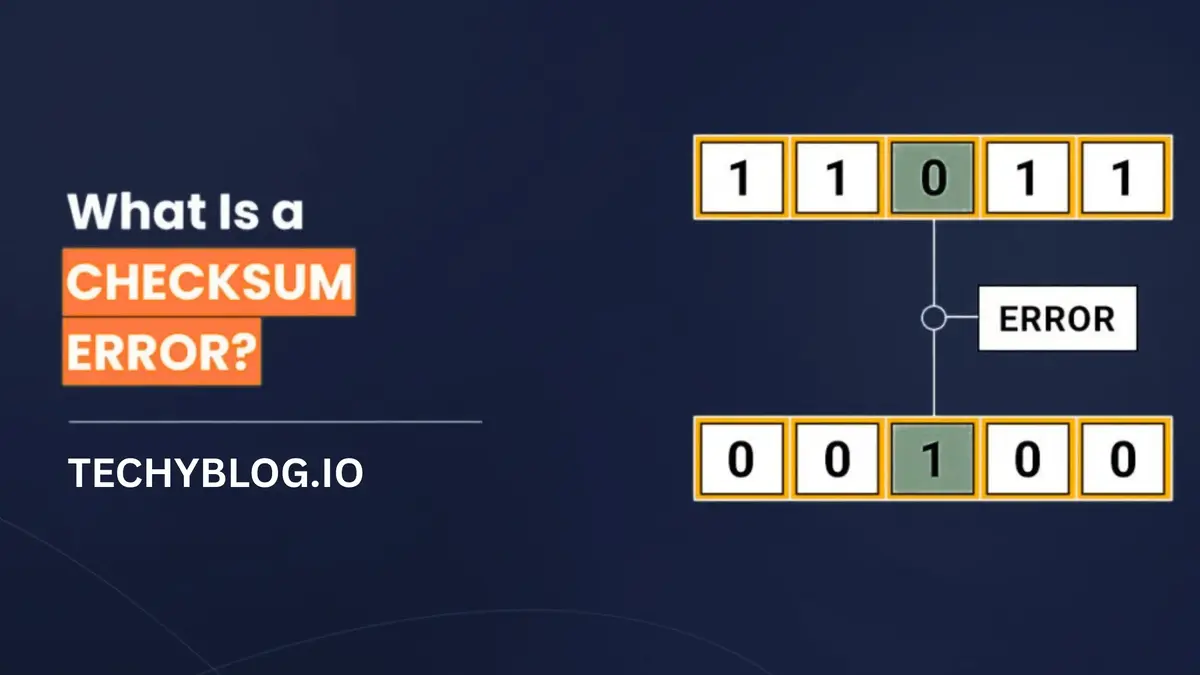
A checksum error occurs when a calculated checksum does not match the expected value for a piece of data. It usually indicates that something is different from what a system expected, which may happen because of file corruption, an incomplete download, a transmission problem, or an incorrect reference value.
You might encounter this error while downloading software, extracting a ZIP archive, installing an application, starting a computer, or transferring data between devices. Although these situations can display similar error messages, their causes and solutions are not always the same.
For example, a damaged archive may produce a CRC error during extraction, while a computer displaying a CMOS checksum error may have a problem with its BIOS settings or motherboard battery.
Understanding where the error appears is the first step toward resolving it safely. This guide explains how checksum errors work, what causes them, and how to troubleshoot the most common situations.
What Does a Checksum Error Mean?
A checksum is a calculated value used to check whether data has changed. A computer or application processes a file or another set of data using a particular algorithm and produces a result.
When the same data is checked again, the system can compare the newly calculated value with the original checksum.
If both values match, the integrity check passes. If they differ, the system reports a checksum mismatch or checksum error.
Consider downloading a software installer. The publisher may provide a SHA-256 checksum alongside the download. After downloading the installer, you calculate its SHA-256 value and compare it with the published value.
If the two values differ, the downloaded file does not match the expected file.
This does not automatically mean the file is infected or that someone has tampered with it. The difference could result from an interrupted download, a damaged file, a different software version, or an incorrect reference checksum.
The important point is that the integrity check has failed, and the file should be investigated before you rely on it.
How Does a Checksum Work?
A checksum algorithm processes data and produces a value that represents the input. The value can then be used to identify many accidental changes to that data.
The basic process involves three steps:
- Calculate: An algorithm processes the original data and generates a checksum.
- Transfer or store: The data moves to another location or remains stored.
- Verify: The receiving system calculates another checksum and compares the result with the expected value.
If the results match, the verification succeeds. If they differ, the system identifies a mismatch.
A Simple Checksum Example
Imagine a software developer publishes an application with the following SHA-256 checksum:
A1B2C3...
After downloading the application, you calculate its checksum. Your computer produces:
A1B2C3...
The values match, so the integrity comparison passes.
Now imagine the downloaded file becomes damaged. Its calculated checksum may look completely different:
F7D9E2...
The comparison fails, and the system reports a checksum mismatch.
These shortened values are illustrative rather than actual SHA-256 outputs.
Why Do Different Checksum Algorithms Exist?
Not all checksum algorithms provide the same level of protection.
Common examples include:
- Simple checksums: Basic calculations used to detect certain data changes.
- CRC (Cyclic Redundancy Check): A method commonly used to detect accidental changes in transmitted or stored data.
- MD5: A widely known hash algorithm that is no longer considered secure against deliberate collision attacks.
- SHA-256: A cryptographic hash function commonly used for file-integrity verification.
A checksum or CRC is not necessarily a cryptographic hash. These terms are related, but they should not be treated as interchangeable.
For security-sensitive verification, SHA-256 or another appropriate modern cryptographic hash is generally preferable to MD5 or a simple CRC.
Even a matching SHA-256 checksum does not independently prove who created a file. For authenticity, the expected hash must come from a trustworthy source, or the file should be verified using an appropriate digital signature.
What Causes a Checksum Error?
Checksum errors can occur in different situations. Identifying the environment in which the message appears helps narrow down the possible cause.
1. Incomplete or Corrupted Downloads
An interrupted internet connection can prevent a file from downloading completely. Browser interruptions, server problems, or unstable network connections may also result in an incomplete download.
If the downloaded file differs from the original, its calculated checksum may not match the publisher’s reference value.
Downloading the file again from the official source is usually the safest first step.
2. Damaged ZIP or Compressed Archives
Compressed files such as ZIP, RAR, and 7z archives often contain integrity information that extraction software checks when processing their contents.
If an archive contains damaged data, the extraction program may display messages such as CRC failed, checksum error, or data error.
Possible causes include:
- An incomplete archive download.
- Storage problems.
- Damage during file transfer.
- An incorrectly created archive.
- A damaged part of a multi-volume archive.
A CRC error does not necessarily mean the extraction program itself is faulty.
3. Incorrect Reference Checksum
Sometimes the downloaded file is perfectly fine, but the expected checksum is incorrect.
This can happen when someone compares a file against a checksum belonging to another version, downloads the wrong checksum file, or copies the reference value incorrectly.
Always make sure the reference checksum belongs to the exact file and version you downloaded.
4. Hard Drive or SSD Problems
Storage devices can develop problems that affect the reliability of stored data.
Possible contributing factors include failing storage components, damaged sectors, unstable connections, and other hardware-related issues.
If checksum errors repeatedly appear across unrelated files, investigate the storage device rather than repeatedly downloading individual files.
Back up important information before running extensive repair operations.
5. BIOS or CMOS Problems
A CMOS checksum error is a different situation from a checksum mismatch in an ordinary downloaded file.
A computer may display a CMOS checksum error during startup when its BIOS or UEFI configuration data does not pass the expected integrity check.
Possible causes include:
- A weak or depleted CMOS battery.
- Corrupted firmware settings.
- An interrupted BIOS update.
- Incorrect configuration data.
If the computer repeatedly loses its date, time, or firmware settings after being switched off, the CMOS battery may need attention.
6. Network Transmission Errors
Network protocols use checksums and other integrity mechanisms to help detect accidental changes to transmitted data.
A checksum failure may indicate that a packet did not pass an integrity check.
However, not every checksum warning indicates a physical network problem. Packet capture tools such as Wireshark may show incorrect outgoing checksums because of checksum offloading, where the network adapter calculates the final checksum after the packet is captured by the software.
The context of the warning matters.
How to Fix a Checksum Error
The correct solution depends on where the error occurs. Follow the relevant troubleshooting steps rather than applying every possible fix to your computer.
1. Verify the Downloaded File Again
If a checksum error appears after downloading software, start by checking whether the file matches the publisher’s expected hash.
Windows includes a built-in command-line utility called CertUtil.
Open Command Prompt and run:
certutil -hashfile "C:\Downloads\example.zip" SHA256
Replace the example path with the actual location of your downloaded file.
Windows will calculate and display the file’s SHA-256 hash.
Compare the result with the SHA-256 value published by the software provider.
If the values differ:
- Confirm that you selected the correct checksum algorithm.
- Check whether the reference value belongs to the same file version.
- Download the file again from the official website.
- Calculate the new file’s hash.
- Compare the result once more.
Do not install or execute an unverified file simply because it downloaded successfully.
2. Use PowerShell to Calculate a File Hash
PowerShell provides another convenient way to verify file integrity.
Open PowerShell and enter:
Get-FileHash "C:\Downloads\example.zip" -Algorithm SHA256
The command displays information about the file, including its SHA-256 hash.
You can also calculate hashes using other supported algorithms by changing the algorithm parameter.
This method is particularly useful when you regularly verify downloaded installers, backup files, or software packages.
3. Test a Damaged ZIP or 7z Archive
If the error appears while extracting a compressed file, test the archive before attempting further recovery.
For example, with the 7-Zip command-line utility, run:
7z t "C:\Downloads\archive.7z"
The test command checks the archive’s contents and reports problems it detects.
If the archive fails the test:
- Download a fresh copy from the original source.
- Make sure all parts of a multi-volume archive are present.
- Check that the file transfer completed successfully.
- Try opening the archive using an updated version of the appropriate extraction software.
Some damaged archives may allow partial extraction, but recovered files are not necessarily complete or reliable. Do not assume that a successful partial extraction means the data is intact.
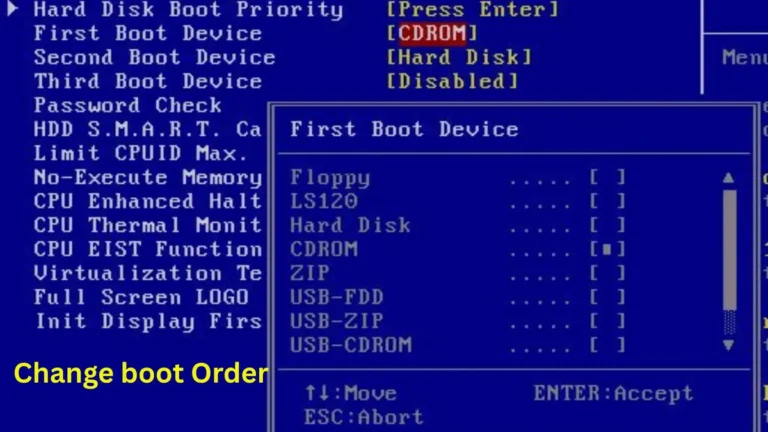
4. Resolve a BIOS or CMOS Checksum Error
If your computer displays a CMOS checksum error during startup, the solution is different from fixing a corrupted download.
Try these steps:
- Restart the computer and enter BIOS or UEFI setup.
- Load the manufacturer’s recommended default settings.
- Check the system date and time.
- Save the settings and restart.
- Check whether the error returns.
If the date and time repeatedly reset after the computer loses power, the CMOS battery may be depleted.
On many desktop motherboards, this is a replaceable coin-cell battery. However, the battery type and replacement procedure depend on the motherboard.
For laptops and newer computers, battery access may require professional assistance.
If the problem started immediately after a BIOS update, consult the computer manufacturer’s recovery instructions rather than attempting an unverified firmware installation.
5. Check Your Storage Device
Repeated checksum errors across different files can indicate a storage-related problem.
Start by backing up important data to another reliable device.
Then:
- Check the drive’s health using an appropriate manufacturer utility.
- Inspect storage cables and connections where applicable.
- Review Windows error messages for recurring disk-related problems.
- Investigate unusual noises, frequent freezes, or disappearing drives.
- Replace a drive if reliable diagnostics indicate hardware failure.
Windows also includes the CHKDSK utility for checking file-system and disk errors.
For example:
chkdsk C: /scan
This performs an online scan of the C: drive’s file system.
CHKDSK is not a universal checksum repair tool. It cannot restore every corrupted file or repair failing physical hardware. If a drive is showing signs of failure, prioritize data recovery and backup before running repair operations.
6. Investigate Network-Related Checksum Warnings
If the error appears in a packet capture or network diagnostic tool, first identify whether the warning concerns incoming or outgoing traffic.
For example, Wireshark may display an incorrect outgoing TCP or UDP checksum because the network adapter performs checksum calculation through hardware offloading.
To investigate:
- Check whether the warning appears on outgoing packets.
- Review the network adapter’s offloading configuration.
- Compare packet captures from another observation point.
- Investigate recurring errors in actual received traffic.
- Check cables, network adapters, and device logs if genuine transmission problems are suspected.
Avoid disabling network features without understanding their purpose.
Checksum vs. CRC vs. Hash: What Is the Difference?
These terms are closely related, but they describe different concepts.
| Term | Main purpose | Common use |
|---|---|---|
| Checksum | Detect certain changes in data | Basic integrity checking |
| CRC | Detect accidental data corruption using polynomial calculations | Archives, storage and communication |
| Cryptographic hash | Produce a fixed-length digest with security-oriented properties | File verification and security |
| SHA-256 | A specific cryptographic hash algorithm | Software download verification |
A CRC is a type of error-detection technique, while SHA-256 belongs to the cryptographic hash family.
A basic checksum or CRC is useful for detecting accidental errors, but it should not be treated as proof that data is authentic or protected against deliberate manipulation.
Is a Checksum Error Dangerous?
A checksum error is not automatically dangerous, but ignoring it can create problems.
For example, installing software after its integrity verification has failed may expose your computer to corrupted or untrustworthy files.
Similarly, repeatedly encountering storage-related errors may indicate a problem that puts important data at risk.
The level of concern depends on the situation:
- One failed download: Usually investigate and download the file again.
- A damaged archive: Obtain another copy before relying on its contents.
- A BIOS checksum error: Investigate firmware settings and the CMOS battery.
- Repeated storage errors: Back up important information and investigate the drive.
- A suspicious software download: Do not run the file until its integrity and source have been verified.
The safest response is to understand the source of the error rather than dismissing every checksum warning.
How to Prevent Checksum Errors
You cannot prevent every checksum mismatch, but good computer practices can reduce the chances of encountering them.
- Download software from official websites and trusted repositories.
- Compare downloaded files against publisher-provided SHA-256 checksums when available.
- Avoid interrupting important file transfers.
- Maintain reliable storage devices and replace failing hardware.
- Keep archive and extraction utilities updated.
- Back up important documents and files regularly.
- Follow the manufacturer’s instructions when updating BIOS or firmware.
- Avoid relying on files that repeatedly fail integrity checks.
These precautions are especially useful when handling important software installers, system backups, compressed archives, and large data transfers.
Frequently Asked Questions
What does a checksum error mean?
A checksum error means that a calculated checksum does not match the expected value. It may indicate corrupted data, an incomplete transfer, an incorrect reference checksum, or another integrity problem.
What causes a checksum mismatch?
Common causes include incomplete downloads, damaged archives, storage problems, transmission errors, incorrect reference values, and firmware-related issues.
Is a checksum error the same as a CRC error?
Not exactly. CRC is a particular error-detection method that can be used to identify accidental changes in data. A checksum is a broader term for a calculated integrity value.
How do I check a file’s checksum in Windows 11?
Open Command Prompt and use CertUtil:
certutil -hashfile "C:\path\to\file.zip" SHA256
Compare the displayed result with the expected SHA-256 value from a trustworthy source.
Can I fix a checksum error without downloading the file again?
Sometimes. If the issue is caused by an incorrect reference checksum, correcting the comparison may resolve it. However, if the downloaded file is genuinely incomplete or damaged, obtaining a fresh copy is generally the safest approach.
Does a checksum error mean my hard drive is failing?
Not necessarily. A single checksum error does not prove that a storage device is damaged. However, repeated integrity errors across unrelated files, especially alongside other disk symptoms, deserve investigation.
What is a CMOS checksum error?
A CMOS checksum error is a startup-related message indicating that the computer’s BIOS or firmware configuration data has failed an integrity check. A depleted CMOS battery or corrupted settings may be responsible.
Can a checksum detect viruses?
A checksum alone cannot reliably identify malware. A matching checksum can help verify that a file matches a known reference, but malware detection requires appropriate security tools and trustworthy verification sources.
Final Thoughts
A checksum error is an indication that an integrity check has failed, not a diagnosis of one specific computer problem.
It can appear during software downloads, archive extraction, storage operations, network communication, or computer startup. Each situation requires a different troubleshooting approach.
Start by identifying where the error appears, verify the affected data, and investigate the relevant hardware or software if the problem continues.
Most importantly, do not ignore repeated integrity warnings or run files that have failed verification. A careful approach can help protect your data and prevent a relatively small problem from becoming a much bigger one.